Tag: Google DeepMind

  • Agentic Vision in Gemini 3 Flash: What It Is, Why It Matters, and How to Use It

    Agentic Vision in Gemini 3 Flash: What It Is, Why It Matters, and How to Use It

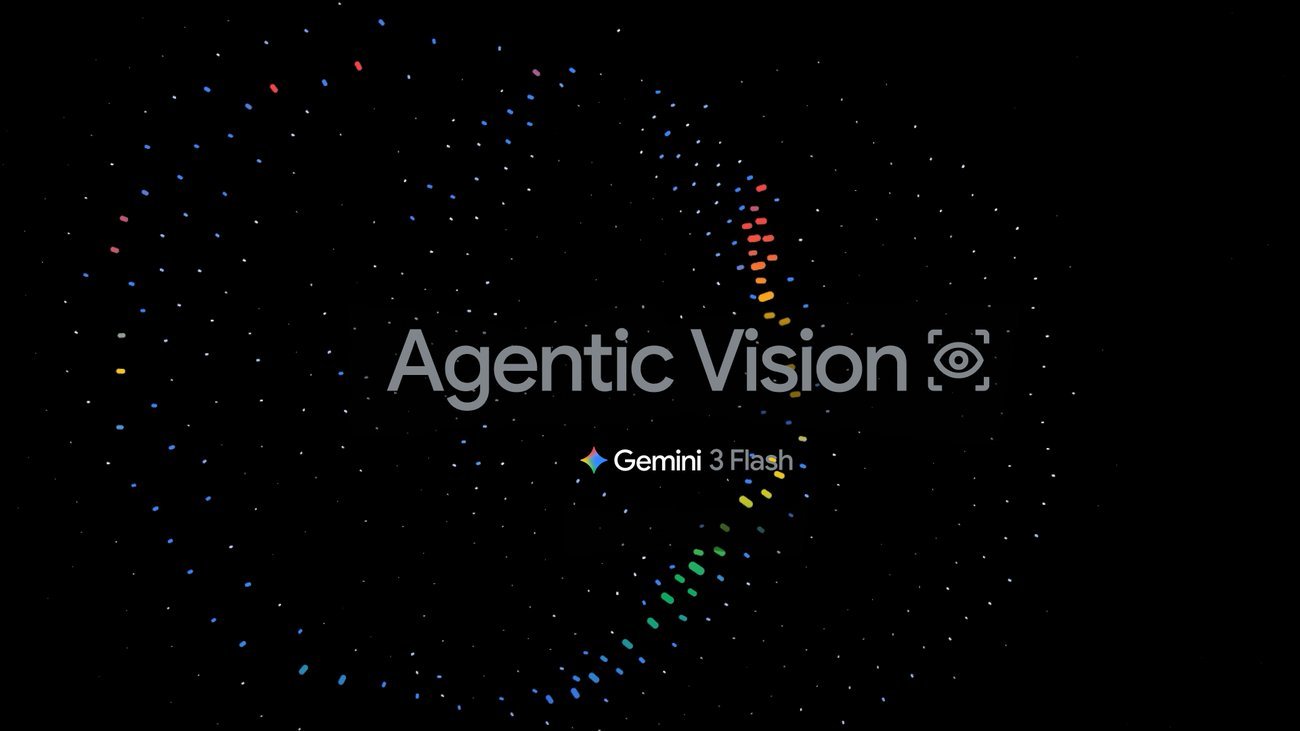
    Agentic Vision in Gemini 3 Flash is Google’s attempt to fix a very practical failure mode in multimodal LLMs: the model “looks once,” misses a tiny detail, and then confidently guesses. With Agentic Vision, image understanding becomes an active investigation—Gemini can plan a sequence of steps (zoom, crop, annotate, compute) and use code execution to generate new, transformed views of the image that it can inspect before answering.

    Google positions this as a Think–Act–Observe loop for vision. The model doesn’t just describe pixels; it creates visual evidence for its own reasoning. That’s a big deal for any workflow where missing a small label, a serial number, or a distant sign turns “AI assistance” into “AI liability.”

    Agentic Vision in Gemini 3 Flash

    TL;DR

    • Agentic Vision in Gemini 3 Flash turns “vision” into an agent loop: Think → Act → Observe.
    • The Act step uses Python code execution to zoom/crop/rotate/annotate images or run visual computations.
    • Those transformed images are appended back into the context window so the model can verify details before answering.
    • Google claims enabling code execution yields a 5–10% quality boost across most vision benchmarks.
    • It’s available via the Gemini API in Google AI Studio and Vertex AI, and rolling out in the Gemini app (Thinking mode).

    Table of contents

    What is Agentic Vision in Gemini 3 Flash?

    In Google’s framing, traditional multimodal LLMs process images in a single pass: they embed the image, generate a response, and if they missed something—too bad. Agentic Vision adds an explicit mechanism for the model to re-examine the image through purposeful transformations.

    Instead of “describe what you see,” the model can do something closer to: “I need to answer X. I suspect the answer depends on a tiny label in the corner. I’ll crop that region, zoom it, annotate it, and only then respond.”

    This is enabled by pairing the model with a tool: code execution (Python). That tool can manipulate the image and/or compute over it. The key is that the model can then observe its own tool outputs and continue reasoning.

    Why static “look once” vision breaks in real work

    Static vision works fine when the question is broad: “what’s in this photo?” It fails when the question is narrow and high-stakes: “what does this tiny street sign say?”, “what’s the part number on the chip?”, “how many digits are visible on this hand?”, “what are the values in this dense table?”

    These tasks share a common shape:

    • there’s a small region of interest in a high-resolution image
    • the model must locate it, then read/measure it
    • the correct answer is verifiable (you can point to the pixels)

    Without an explicit way to zoom and verify, the model is forced into probabilistic guessing. Agentic Vision is essentially Google admitting: “for many vision tasks, you need tooling, not vibes.”

    The Think–Act–Observe loop (how it works)

    Google describes Agentic Vision as adding an agent loop to image understanding:

    Think: create a plan

    Gemini analyzes the user query and the initial image, then creates a multi-step plan. The plan might include finding a region, zooming into it, annotating candidate objects, or extracting numbers for calculation.

    Act: execute Python code

    The model generates Python code and executes it to manipulate or analyze the image. Examples include cropping, rotating, drawing bounding boxes, counting detected objects, or running visual math (e.g., parsing a chart/table and plotting a normalized chart).

    Observe: feed the transformed image back

    The transformed output (often a new image) is appended into the model’s context. This matters: the model doesn’t have to “imagine” the crop—it can actually inspect the crop and ground its final answer in visual evidence.

    Conceptually, this is similar to why tool-using LLM agents work better for arithmetic: the LLM is good at deciding what to compute, and the tool is good at computing it deterministically. Here, the tool is doing deterministic image transformations that help the LLM see what it needs to see.

    Use cases: when agentic vision is actually useful

    The Google post highlights three categories. Here’s how I’d translate them into product reality.

    1) Fine-detail reading: zoom, crop, inspect

    This is the “tiny detail” problem: serial numbers, street signs, SKU labels, PCB markings, small UI text in screenshots. Agentic Vision can iteratively zoom into candidate regions until the detail becomes readable.

    2) Visual counting and annotation

    Counting is surprisingly hard for LLMs in images, especially when objects overlap. If the model can annotate the image (draw boxes + labels), it creates a “visual scratchpad” that reduces double-counting and omission errors.

    3) Visual math: extract data → compute → plot

    When the question involves numbers embedded in images (tables, charts, slides), hallucinations tend to creep in during multi-step arithmetic. Offloading computation to Python makes the pipeline more verifiable: extract the raw values, compute deterministically, and render a chart as evidence.

    How to try it (AI Studio + Vertex AI)

    Google says you can try Agentic Vision in Google AI Studio by turning on Code Execution under Tools (in the Playground). It’s also available via Vertex AI for teams building production workflows.

    If you’re implementing this in an app, the most important engineering decision is not the UI—it’s policy + guardrails for tool execution. You’re letting the model run code. That’s powerful, but it’s also a new attack surface if you don’t sandbox correctly (Google’s platform handles the sandboxing in their tool environment).

    Minimal mental model for developers

    When you enable code execution, you are effectively giving the model a new capability: “do intermediate work and show your receipts.” If your vision workflow cares about correctness, you should treat code execution like a first-class feature, not a checkbox.

    Workflow idea:
    1) user provides an image + question
    2) model plans inspection steps
    3) model runs code to crop/zoom/annotate
    4) model observes outputs and answers
    5) your app can log the intermediate artifacts for QA

    Code: Enable code execution with images (Gemini API)

    Google’s official docs: Code execution with images. The key is enabling the code execution tool (and for Gemini 3 image workflows, enabling Thinking as noted in the docs). Below are practical examples you can paste and adapt.

    Python (Gen AI SDK): enable code execution

    from google import genai
    from google.genai import types
    
    client = genai.Client()
    
    response = client.models.generate_content(
        model="gemini-3-flash-preview",
        contents=(
            "What is the sum of the first 50 prime numbers? "
            "Generate and run code for the calculation, and make sure you get all 50."
        ),
        config=types.GenerateContentConfig(
            tools=[types.Tool(code_execution=types.ToolCodeExecution)]
        ),
    )
    
    for part in response.candidates[0].content.parts:
        if part.text is not None:
            print(part.text)
        if part.executable_code is not None:
            print(part.executable_code.code)
        if part.code_execution_result is not None:
            print(part.code_execution_result.output)

    Python: code execution with images (agentic zoom/crop/inspect)

    This matches the Agentic Vision loop: the model writes Python to crop/zoom/annotate, then inspects the transformed image(s) before answering.

    from google import genai
    from google.genai import types
    
    import requests
    from PIL import Image
    import io
    
    image_path = "https://goo.gle/instrument-img"
    image_bytes = requests.get(image_path).content
    
    image = types.Part.from_bytes(
        data=image_bytes,
        mime_type="image/jpeg",
    )
    
    client = genai.Client()
    
    response = client.models.generate_content(
        model="gemini-3-flash-preview",
        contents=[
            image,
            "Zoom into the expression pedals and tell me how many pedals are there?",
        ],
        config=types.GenerateContentConfig(
            tools=[types.Tool(code_execution=types.ToolCodeExecution)],
        ),
    )
    
    for part in response.candidates[0].content.parts:
        if part.text is not None:
            print(part.text)
    
        if part.executable_code is not None:
            print(part.executable_code.code)
    
        if part.code_execution_result is not None:
            print(part.code_execution_result.output)
    
        if part.as_image() is not None:
            # display() is a standard function in Jupyter/Colab notebooks
            display(Image.open(io.BytesIO(part.as_image().image_bytes)))

    JavaScript (Node.js): code execution with images

    async function main() {
      const ai = new GoogleGenAI({ });
    
      // 1. Prepare Image Data
      const imageUrl = "https://goo.gle/instrument-img";
      const response = await fetch(imageUrl);
      const imageArrayBuffer = await response.arrayBuffer();
      const base64ImageData = Buffer.from(imageArrayBuffer).toString('base64');
    
      // 2. Call the API with Code Execution enabled
      const result = await ai.models.generateContent({
        model: "gemini-3-flash-preview",
        contents: [
          {
            inlineData: {
              mimeType: 'image/jpeg',
              data: base64ImageData,
            },
          },
          { text: "Zoom into the expression pedals and tell me how many pedals are there?" }
        ],
        config: {
          tools: [{ codeExecution: {} }],
        },
      });
    
      // 3. Process the response (Text, Code, and Execution Results)
      const candidates = result.candidates;
      if (candidates && candidates[0].content.parts) {
        for (const part of candidates[0].content.parts) {
          if (part.text) {
            console.log("Text:", part.text);
          }
          if (part.executableCode) {
            console.log(`\nGenerated Code (${part.executableCode.language}):\n`, part.executableCode.code);
          }
          if (part.codeExecutionResult) {
            console.log(`\nExecution Output (${part.codeExecutionResult.outcome}):\n`, part.codeExecutionResult.output);
          }
        }
      }
    }
    
    main();

    REST (curl): code execution with images

    IMG_URL="https://goo.gle/instrument-img"
    MODEL="gemini-3-flash-preview"
    
    MIME_TYPE=$(curl -sIL "$IMG_URL" | grep -i '^content-type:' | awk -F ': ' '{print $2}' | sed 's/\r$//' | head -n 1)
    if [[ -z "$MIME_TYPE" || ! "$MIME_TYPE" == image/* ]]; then
      MIME_TYPE="image/jpeg"
    fi
    
    if [[ "$(uname)" == "Darwin" ]]; then
      IMAGE_B64=$(curl -sL "$IMG_URL" | base64 -b 0)
    elif [[ "$(base64 --version 2>&1)" = *"FreeBSD"* ]]; then
      IMAGE_B64=$(curl -sL "$IMG_URL" | base64)
    else
      IMAGE_B64=$(curl -sL "$IMG_URL" | base64 -w0)
    fi
    
    curl "https://generativelanguage.googleapis.com/v1beta/models/$MODEL:generateContent" \
        -H "x-goog-api-key: $GEMINI_API_KEY" \
        -H 'Content-Type: application/json' \
        -X POST \
        -d '{
          "contents": [{
            "parts":[
                {
                  "inline_data": {
                    "mime_type":"'"$MIME_TYPE"'",
                    "data": "'"$IMAGE_B64"'"
                  }
                },
                {"text": "Zoom into the expression pedals and tell me how many pedals are there?"}
            ]
          }],
          "tools": [
            {
              "code_execution": {}
            }
          ]
        }

    Python: use code execution in chat

    from google import genai
    from google.genai import types
    
    client = genai.Client()
    
    chat = client.chats.create(
        model="gemini-3-flash-preview",
        config=types.GenerateContentConfig(
            tools=[types.Tool(code_execution=types.ToolCodeExecution)],
        ),
    )
    
    print(chat.send_message("I have a math question for you.").text)
    
    response = chat.send_message(
        "What is the sum of the first 50 prime numbers? "
        "Generate and run code for the calculation, and make sure you get all 50."
    )
    
    for part in response.candidates[0].content.parts:
        if part.text is not None:
            print(part.text)
        if part.executable_code is not None:
            print(part.executable_code.code)
        if part.code_execution_result is not None:
            print(part.code_execution_result.output)

    Prompting tip (from the docs): the model often zooms implicitly for small details, but for other actions you should be explicit, e.g. “Write code to count the number of gears” or “Rotate this image to make it upright.”

    Prompt patterns that reliably trigger agentic behavior

    Because the model decides when to use tools, the prompt matters. In practice, you’ll get better results if you explicitly ask for verification. Examples:

    • Ask for evidence: “Crop the region that contains the serial number and quote it exactly.”
    • Ask for annotation: “Draw boxes around each item you counted, then provide the count.”
    • Ask for computation: “Extract the numbers into a table, compute the totals with code, and show the result.”

    These prompts do two things: they nudge tool use, and they force the model to produce intermediate artifacts that you (and your users) can sanity-check.

    Risks, costs, and design pitfalls

    Agentic Vision is not a free lunch. A few tradeoffs to keep in mind:

    • Latency: Think–Act–Observe loops add extra steps. You’re trading some speed for correctness.
    • Cost: More steps typically means more tokens and more tool calls. Budget accordingly, especially for high-volume apps.
    • Overconfidence still exists: Tools reduce guessing, but don’t eliminate it. You should still design for uncertainty (e.g., allow “I can’t read this” outcomes).
    • UI/UX requirements: Users trust systems that can show evidence. If you’re using agentic vision, consider showing annotated images or “inspection steps” as part of the UX.

    How to evaluate agentic vision features

    If you’re shipping this, you’ll want more than a qualitative demo. A practical evaluation framework:

    • TTFC (time-to-first-correct): how long until you get a correct, verifiable answer?
    • Error types: misread text vs wrong region vs wrong count vs arithmetic error.
    • Evidence quality: does the model provide crops/annotations that actually support the answer?
    • Tool efficiency: how many tool steps does it take on average? can you cap loops safely?
    • Regression suite: keep a set of “hard images” (tiny text, clutter, low contrast) and rerun them when you change prompts/models.

    Tools & platforms (official links)

    Bottom line: Agentic Vision is a meaningful step toward verifiable multimodal AI. If your vision workload depends on small details or numeric correctness, enabling tool use (and designing UX around evidence) is the difference between “cool demo” and “deployable feature.”

    Implementation notes: building a “visual evidence” pipeline

    If you’re integrating Agentic Vision into a product, treat it like a pipeline with artifacts. The big unlock is not that the model can crop an image—it’s that your application can store and display the intermediate steps. That changes how you debug, how you build trust, and how you handle disputes when the model is wrong.

    What to log (minimum viable observability)

    • original input image hash / URL (and the user question)
    • each tool call (Python snippet) + runtime output
    • each generated artifact (crop/zoom/annotation) saved with metadata
    • final answer + confidence/uncertainty markers

    Even if users never see these logs, you will. This is the difference between “we think it’s better” and “we can prove when/why it fails.”

    When to stop the loop

    Any agent loop needs stopping rules. In real apps you’ll want to cap the number of tool steps, cap total latency, and decide what to do on partial failure. A practical approach is: allow a short investigation (e.g., up to 2–4 transformations), and if the model still can’t verify the answer, have it explicitly say it cannot read/resolve the detail and ask for a higher-resolution image or a clearer crop.

    Security and compliance: code execution changes your threat model

    Google’s tooling provides a sandboxed environment for code execution, but you should still think carefully about what “code execution” means for your product architecture and compliance posture. In general:

    • avoid letting tool code access external networks unless you explicitly need it
    • assume code can be adversarial (prompt injection is real)
    • log tool calls and outputs for auditability
    • separate sensitive images/tenants via policy and infrastructure boundaries

    If your customers are enterprise, “we enable code execution” will trigger questions. Having a clear, documented sandbox story makes sales and security reviews smoother.

    FAQ: quick answers

    Is Agentic Vision the same as a vision model upgrade?

    Not exactly. It’s a capability that combines model reasoning with tool use. The model may be similar, but the behavior changes because it can act (transform) and observe new evidence.

    Will it always zoom/crop automatically?

    Google says Gemini 3 Flash can implicitly decide when to zoom for fine-grained detail, but some behaviors may still require an explicit prompt nudge. In practice, expect to design prompts that ask for verification until your specific use case is stable.

    What’s the easiest way to get value from it?

    Start with workflows where the answer is verifiable and small errors are costly: counting, reading tiny text, extracting tables, or plotting. Then build UI that shows the evidence (crops/annotations) so users trust the output.

    Where this fits in the bigger “agents” trend

    Agentic Vision is really an “agents idea” applied to perception. In text-only agents, the loop is: plan → call tools (search, DB, calculator) → read results → answer. Here, the “world” is an image and the tool is a deterministic image workstation (Python). The model isn’t magically seeing better; it’s iterating and grounding its reasoning in intermediate artifacts.

    If you’re building product features, this has a concrete implication: the best UX is often not “one perfect answer,” but “a short investigation transcript.” For example: show the user the zoomed crop where the serial number was read, or the annotated image used for counting. Humans trust what they can verify.

    Comparison: Agentic Vision vs plain multimodal prompting vs OCR

    It’s tempting to compare Agentic Vision to OCR or classic CV pipelines. They’re not direct substitutes—they’re different points on a spectrum:

    • Plain multimodal prompting: fastest to ship, but weakest on fine details. Great for broad description; shaky for verifiable micro-details.
    • OCR / classic CV pipeline: very reliable for constrained tasks (text extraction, barcode reading), but brittle when the workflow requires reasoning across multiple visual cues.
    • Agentic Vision: a middle path—use a general-purpose model for reasoning, plus tool-based transformations for verification. It won’t beat a specialized pipeline on every metric, but it can solve more “messy real-world” tasks end-to-end.

    In practice, the most robust production systems will combine them. Example: use OCR first; if OCR confidence is low, fall back to agentic zoom + annotation; and if it still fails, ask the user for a clearer image. That’s how you build reliability without burning infinite tool steps.

    Practical product tip: make verification visible

    If you’re adding Agentic Vision to an app, don’t hide the evidence. The easiest win is a “Show work” toggle that reveals the crops/annotations the model used. This reduces support tickets (“it guessed wrong”), improves trust (“it actually looked at the right place”), and helps you debug prompts (“why did it zoom into the wrong region?”).

    Even a minimal UI—showing the final annotated image used for counting—can turn a black-box answer into a product users feel comfortable relying on.